Came back to Seller Central after a break and found your account deactivated? This guide shows how to reactivate an Amazon seller account after inactivity, what verification Amazon asks for, and the mismatches that get reactivations stuck.
Quick answer
To reactivate an Amazon seller account after inactivity, log in to Seller Central with your original email, follow the reactivation or verification prompt, update your business details, and upload the documents Amazon asks for, usually a government ID and a recent bank or credit card statement. Amazon may also ask for a video call. Every name and address must match exactly. Don’t open a new account instead, because it may be treated as a related account.
Key takeaways
- Inactive accounts are usually reactivated through re-verification, not an appeal.
- Update your details before you upload documents.
- Names and addresses must match your ID and statements exactly.
- Don’t open a new account instead.
- Our appeals team checks your documents for free.
Stuck reactivating your account?
Send us the message Amazon shows you. We tell you honestly what it needs.
Why Amazon deactivates inactive seller accounts
Amazon may deactivate or ask to re-verify accounts that haven’t been used for a long time. It does this partly to stop unused accounts from being taken over or misused. Other common reasons an older account can’t sell are an expired ID, a credit card that no longer works, or a verification request that was never completed.
| What you see | What it usually means | What to do |
|---|---|---|
| A reactivation or verification prompt after login | The account needs re-verification | Follow the prompt and upload documents |
| “Deactivated” on Account Health | Verification or a policy issue | Read the notice and the reason given |
| Payment or charge method failed | Card expired or declined | Update the card in Settings |
| Can’t log in at all | Old email, password or two-step verification | Recover access first through Amazon’s login help |
How to reactivate an Amazon seller account
1. Log in with the original email
Use the email the account was created with. Don’t create a new login. If two-step verification uses an old phone number, recover access first.
2. Read exactly what Amazon asks for
Check the prompt, Account Health and your email, including spam. Note every document and detail Amazon lists.
3. Update your details first
Correct your legal name, address, phone number, bank account and credit card in Seller Central so they match your current documents.
4. Upload clear documents
Upload complete, readable files that match what you entered. If Amazon offers a video call, prepare for it with our video verification guide.
5. Answer follow-ups quickly
Amazon may ask for more information. Reply once, with exactly what it asks for.
Not sure what Amazon is asking for? Tap the green WhatsApp icon on your screen and send us a screenshot. Reading it is free.
Documents Amazon usually asks for
- Government-issued ID (passport or national ID) that hasn’t expired.
- Recent bank or credit card statement in the same name and address.
- Business documents, if the account is registered to a company.
- Utility bill or similar proof of address, if requested.
- Working credit card for the seller account charges.
- Video call with Amazon, in some cases.
Why reactivations get stuck
- The name on the ID doesn’t match the account name.
- The address changed and Seller Central wasn’t updated.
- Statements are older than Amazon allows or are cropped.
- Documents are edited, blurred or screenshots of screenshots.
- The bank account is in someone else’s name.
- A new account was opened while the old one was inactive.
For a deeper look at verification problems and held payouts, read our identity verification and frozen funds guide.
After your account is reactivated
- Check Account Health in every marketplace.
- Review old listings for outdated prices, images and claims.
- Make sure you can fulfill orders on time before turning listings on.
- Keep invoices for every product you sell.
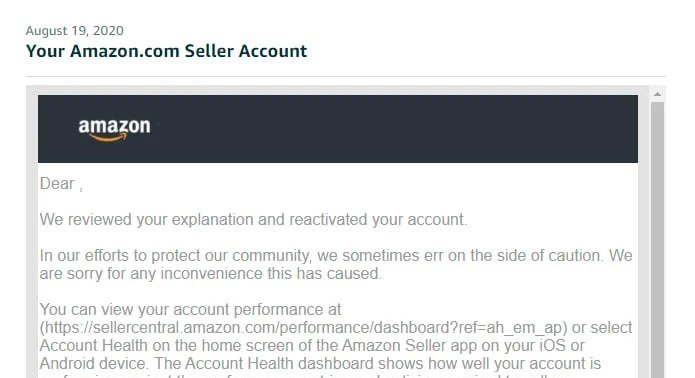
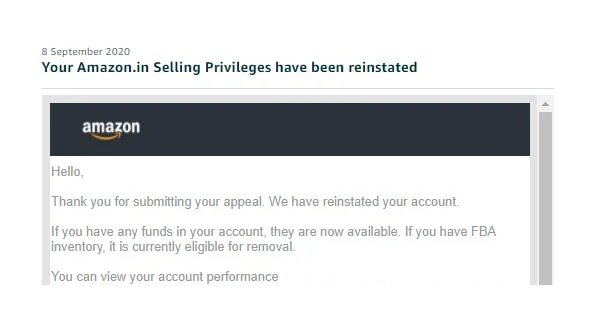
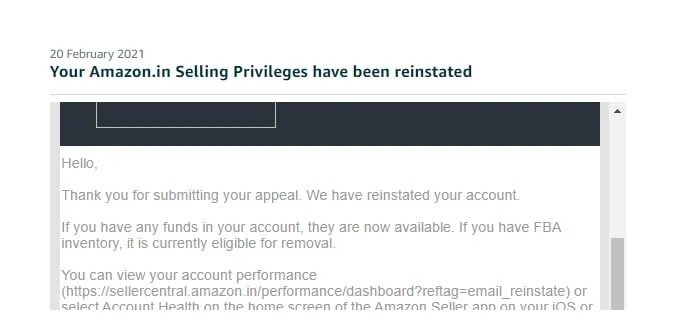
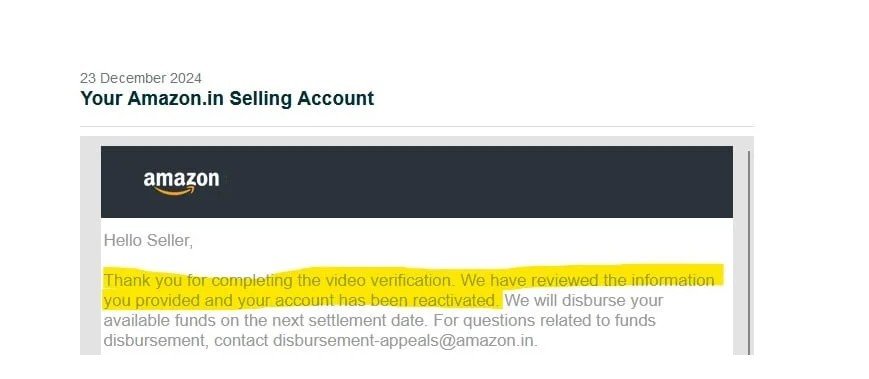
Real reinstatement results
These are reinstatement emails from client cases we handled, including verification cases.
How our fee works
Reading your notice is free. If we take the case, you pay a small part to start and the rest only when you are selling again.
Complex cases are Section 3, counterfeit, linked accounts, review manipulation and dropshipping.
Frequently asked questions
Why did Amazon deactivate my account for inactivity?
Amazon may deactivate or ask to re-verify accounts that have not been used for a long time, partly to protect them from misuse. The notice or the Seller Central login screen usually explains what is needed.
Do I need to verify my identity again?
Often, yes. Amazon commonly asks for a government ID, a recent bank or credit card statement, and sometimes a video call. The details must match the information in Seller Central.
Can I open a new account instead?
Usually not. Amazon generally allows one seller account per business, and a new account linked to the old one may be deactivated as a related account. Reactivate the original account instead.
What if my reactivation is rejected?
Read the reason carefully, fix the mismatch or missing document, and submit once more with a short explanation. If it is rejected again, get help before you resubmit.
How much does your help cost?
Reading your notice is free. Standard cases are $150 to start and $350 only after reinstatement. Complex cases such as Section 3, counterfeit, linked accounts, review manipulation and dropshipping are $200 to start and $400 after reinstatement.
Send us what Amazon is asking for
Our appeals team reads it free and tells you honestly whether we can help.
Need help? See our verification and funds service.
Get Amazon account-health alerts
New policy changes, common deactivation triggers and how to avoid them. Occasional emails from our appeals team, no spam.
By subscribing you agree to receive emails from SellerReinstatement. Unsubscribe anytime. See our Privacy Policy.
Leave a Reply